Profiles
A profile is a self-contained Minecraft instance configuration. Each profile has its own file set, mod loader, Minecraft version, and server address. Players can choose which profile to launch from the launcher, and each will install and run independently on their machine.
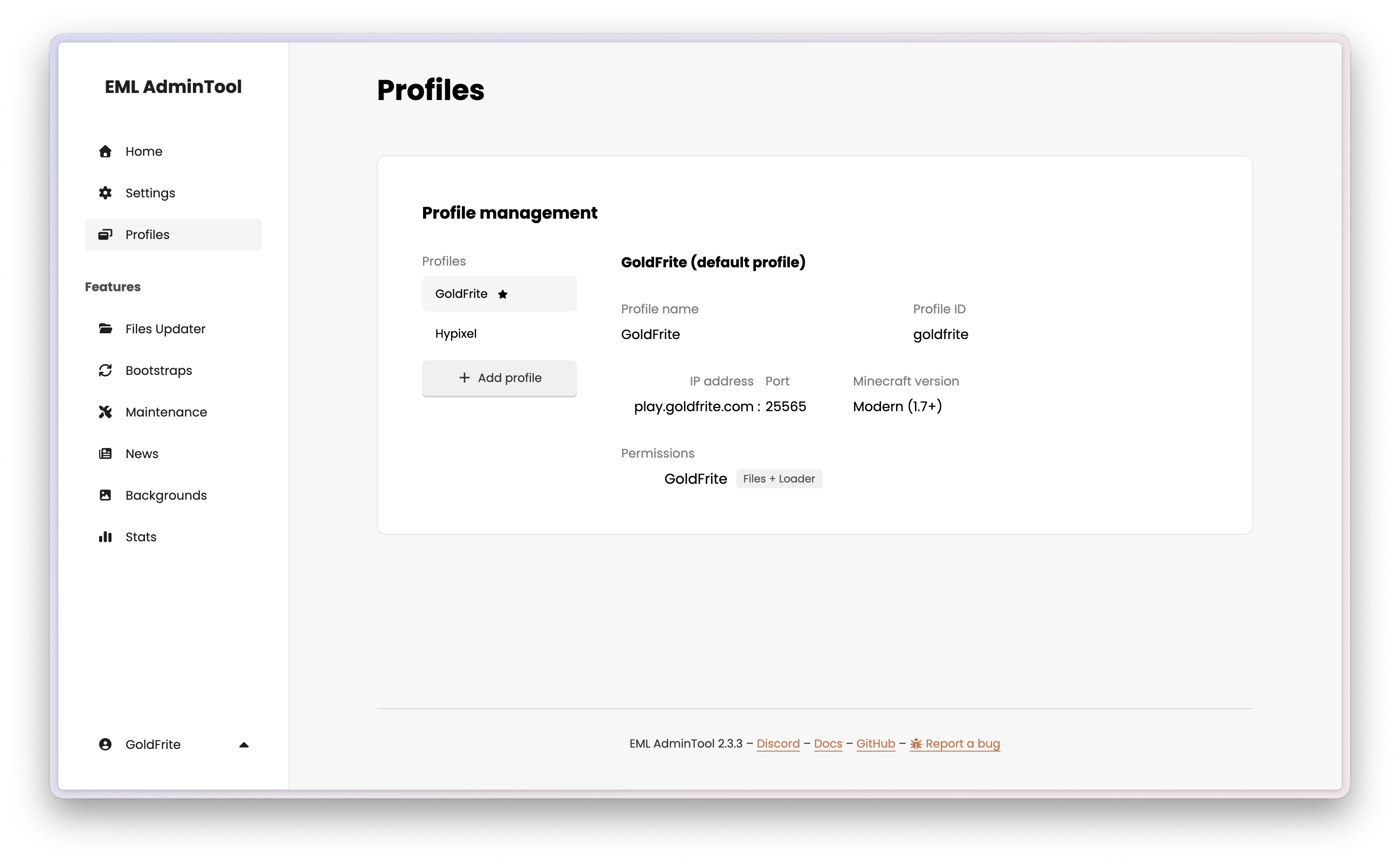
Profiles allow you to manage multiple game modes (a vanilla survival server, a modded server, an event modpack, etc.) from a single EML AdminTool instance.
Creating a profile
Click the “Add profile” button. A modal opens with the following fields:
Name — The display name shown in the launcher (e.g. Survival, Modded 1.21).
Slug — A unique internal identifier derived from the name (e.g. survival, modded-121). This file is automatically generated from the name.
Server IP / Port — The address of the Minecraft server associated with this profile. Optional — used for the server status indicator in the launcher.
Minecraft version — The version used for the server status ping. Optional.
Permissions — Select which users have access to manage this profile’s files and loader configuration.
Visibility (for non-default profiles) — Choose how players can access the profile in the launcher. Options are:
- Visible: the profile is displayed in the launcher for all players;
- Hidden: the profile is only displayed for players with permission to view it (pseudos added to the “Allowed pseudos to view the profile” list).
- Protected: the profile is displayed in the launcher for all players, but only players who know the password can launch it.
Allowed pseudos to view the profile (for hidden profiles) — Select which players can see and launch this profile. If no users are selected, the profile is effectively disabled.
Password (for protected profiles) — Players must enter this password in the launcher to launch the profile.
Warning
Hiding a profile is not a security measure. It only prevents it from being displayed in the launcher for players without permission, but they can still access it if they know the slug, the direct URL or an allowed pseudo. Allowed pseudos are only used to display the profile in the launcher to players with permission. You should always use proper server-side authentication and authorization to protect your game files and server access. You can use hidden profiles to create private test servers, or to restrict access to certain game modes for specific players.
Note
Protecting a profile with a password also protect the files associated with it (from Files Updater and Loader). Even though protecting a profile should prevent unauthorized players from launching it, you should always use proper server-side authentication and authorization to protect your game files and server access.
Once saved, the profile appears in the list and is immediately available for file and loader management.
Editing a profile
Hover over any profile card and click the edit button to rename it, update its server address, Minecraft version and permissions. Changes apply immediately.
Tip
You can also edit permissions from the Settings page. Permissions are always in sync between the profile and the user management sections.
Deleting a profile
Hover over a profile card and click the trash button to delete it.
Caution
Deleting a profile is irreversible. All files associated with the profile are permanently removed from the server, and all user permissions tied to it are revoked.
Note
The default profile cannot be deleted.