Quick start
Note
If you are using EML Template, this page is optional. The template ships with a working main process. You can skip directly to Frontend architecture.
This page walks you through the minimal code needed to verify that your environment is correctly set up by launching Minecraft from the terminal — without building a UI yet.
Connect EML Lib to your content source
EML Lib supports two modes:
- Connected mode — EML Lib fetches the Minecraft version, mod loader, and file manifest from an EML AdminTool instance. This is the recommended mode for most use cases, as it provides a user-friendly interface for managing your content and configurations.
- Agnostic mode — EML Lib uses a manifest JSON file you host yourself. Generate one with the Modpack JSON generator.
Both modes use the same API. The only difference is whether the Config points to an EML AdminTool instance or directly to a manifest JSON.
Minimal launcher
Create electron/main.js (or main.ts) and paste the following code:
Tip
You can generate the Config object with the Config generator to avoid manual errors. Just copy and paste the generated object into the new Launcher({ ... }) call below.
import { app, BrowserWindow } from 'electron'
import { Launcher, CrackAuth } from 'eml-lib'
import path from 'node:path'

function createWindow() {
  const win = new BrowserWindow({
    width: 800,
    height: 600,
    webPreferences: {
      nodeIntegration: true,
      contextIsolation: false
    }
  })

  if (process.env.VITE_DEV_SERVER_URL) {
    win.loadURL(process.env.VITE_DEV_SERVER_URL)
  } else {
    win.loadFile(path.join(\_\_dirname, '../dist/index.html'))
  }
}

app.whenReady().then(async () => {
  createWindow()

  const launcher = new Launcher({
    /** Your Config object goes here **/
  })

  launcher.on('launch_compute_download', () => console.log('Computing download...'))
  launcher.on('launch_download', (d) => console.log(`Downloading ${d.total.amount} files...`))
  launcher.on('launch_install_loader', (l) => console.log(`Installing ${l.type} ${l.loaderVersion}...`))
  launcher.on('launch_check_java', () => console.log('Checking Java...'))
  launcher.on('launch_launch', (info) => console.log(`Launching Minecraft ${info.version}...`))
  launcher.on('launch_data', (msg) => process.stdout.write(msg))
  launcher.on('launch_close', (code) => console.log(`Closed with code ${code}.`))

  try {
    await launcher.launch()
  } catch (err) {
    console.error('Launch error:', err)
  }
})

app.on('window-all-closed', () => {
  if (process.platform !== 'darwin') app.quit()
})
import { app, BrowserWindow } from 'electron'
import { Launcher, CrackAuth } from 'eml-lib'
import path from 'node:path'
function createWindow(): void {
const win = new BrowserWindow({
width: 800,
height: 600,
webPreferences: {
nodeIntegration: true,
contextIsolation: false
}
})
if (process.env.VITE_DEV_SERVER_URL) {
win.loadURL(process.env.VITE_DEV_SERVER_URL)
} else {
win.loadFile(path.join(\_\_dirname, '../dist/index.html'))
}
}
app.whenReady().then(async () => {
createWindow()
const launcher = new Launcher({
/** Your Config object goes here **/
})
launcher.on('launch_compute_download', () => console.log('Computing download...'))
launcher.on('launch_download', (d) => console.log(`Downloading ${d.total.amount} files...`))
launcher.on('launch_install_loader', (l) => console.log(`Installing ${l.type} ${l.loaderVersion}...`))
launcher.on('launch_check_java', () => console.log('Checking Java...'))
launcher.on('launch_launch', (info) => console.log(`Launching Minecraft ${info.version}...`))
launcher.on('launch_data', (msg) => process.stdout.write(msg))
launcher.on('launch_close', (code) => console.log(`Closed with code ${code}.`))
try {
await launcher.launch()
} catch (err) {
console.error('Launch error:', err)
}
})
app.on('window-all-closed', () => {
if (process.platform !== 'darwin') app.quit()
})Run it
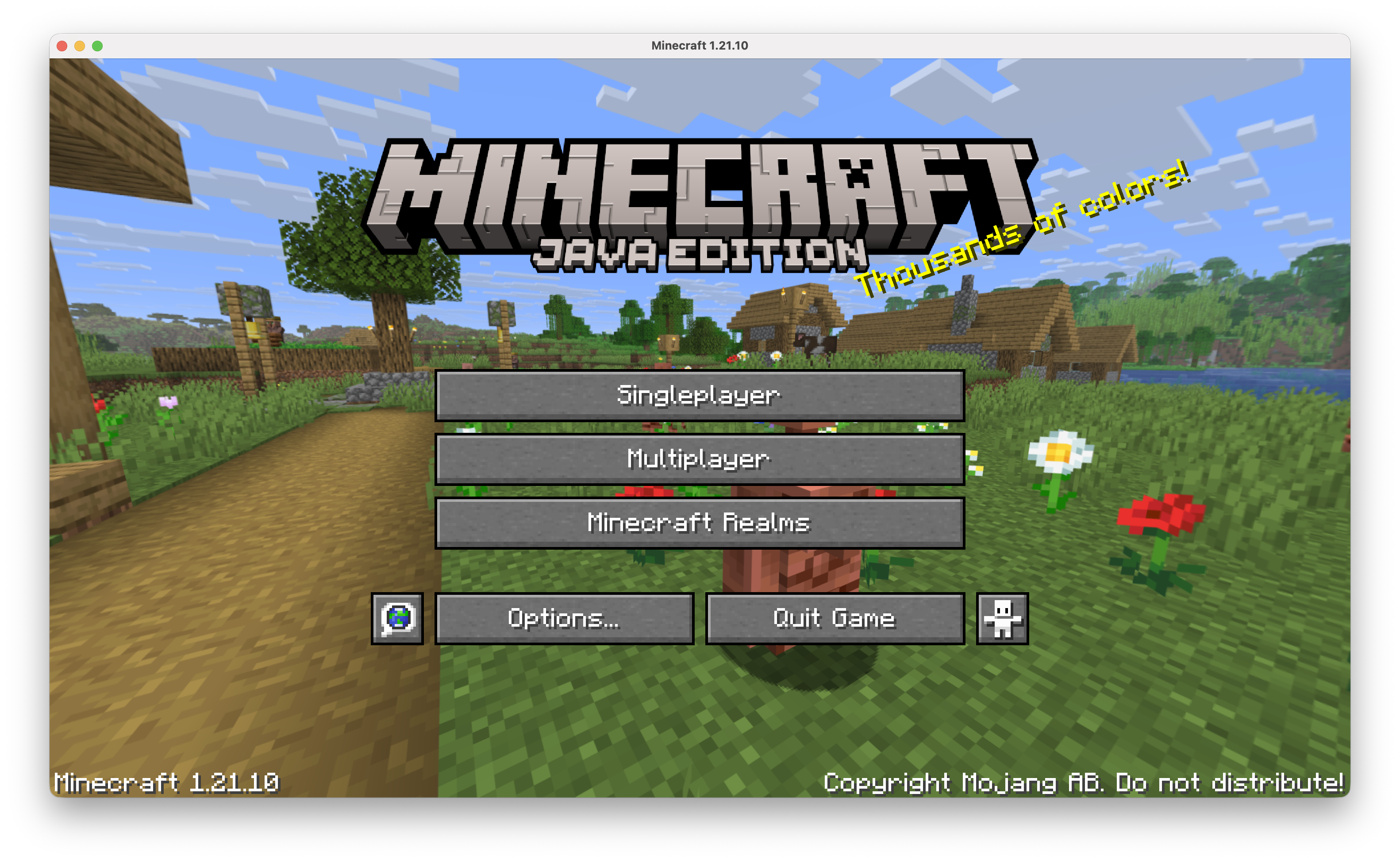
npm run devVite starts a dev server, an Electron window opens, and in the terminal you should see EML Lib downloading assets and libraries. Once the download is complete, a Minecraft window opens.
Caution
CrackAuth is used here for testing convenience only. It is not legal for players who own a genuine Minecraft licence. Use MicrosoftAuth in production.
Congratulations — your environment is working!